How to Choose a Good Router - The Ultimate Guide
Tired of slow internet? Learn how to pick the perfect router to eliminate lag, buffering, and WiFi dead zones in your home.
You signed up for a blazing-fast 500 Mbps internet plan or better, but when you try to stream 4K or game online, everything buffers and lags? Nine times out of ten, the problem isn't your ISP—it's the equipment distributing that signal throughout your home.
It's a common frustration: you're paying top dollar for a "Ferrari" (your fiber connection), but trying to drive it with bicycle wheels (the basic router your ISP installed). The result is sluggish speeds, dead zones where WiFi doesn't reach, and constantly having to reboot the darn thing.
With homes getting more connected by the day—from smart home gadgets to multiple smartphones and laptops—your router has become the digital heart of your house. Choosing the wrong model means years of headaches and wasted money.
In this ultimate guide, I'll teach you exactly how to choose a good router. We'll break down all the confusing jargon (WiFi 6, Mesh, MU-MIMO), understand what actually matters in the specs, and make sure you never see that dreaded "buffering" icon again.
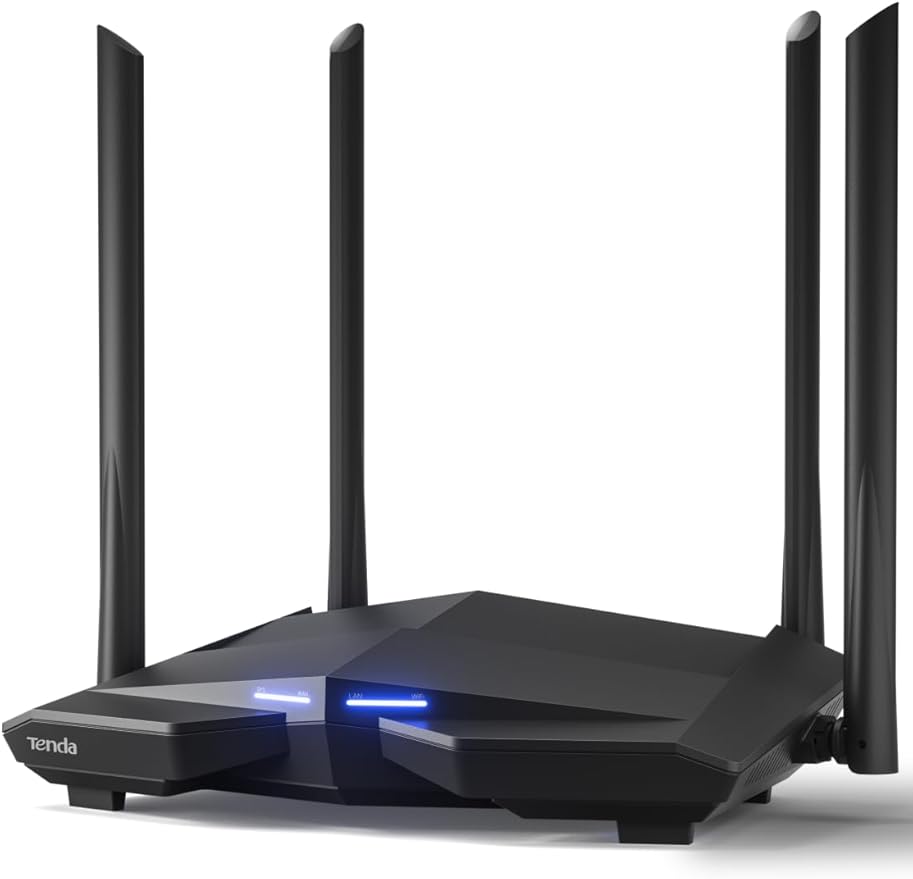


Table of Contents
- The Problem with Your ISP's Router
- WiFi Standards: From 4 to 7 Explained
- Frequencies: Understanding 2.4GHz, 5GHz, and 6GHz
- Mesh vs. Extenders: The Coverage Battle
- Essential Technologies: MU-MIMO, Beamforming, and QoS
- Ports and Hardware: What to Look for in Specs
- Frequently Asked Questions
- Conclusion
The Problem with Your ISP's Router
To understand how to choose a good router, we first need to understand why the device you have right now probably isn't cutting it.
When you sign up for internet service, your ISP provides equipment (usually a modem with integrated WiFi) as part of your plan. The ISP's goal is profit, so they purchase these units in bulk by the millions at the lowest possible cost.
These devices are designed to function at the "bare minimum acceptable" level. They can deliver your contracted speed if you're 6 feet away, via cable. But they fail miserably at:
- Managing multiple devices: Try connecting three phones, a 4K TV, and a laptop for studying simultaneously. The weak processor in your ISP's router chokes.
- Signal range: The internal antennas typically have low gain, making it difficult for the signal to penetrate more than one wall.
- Stability: Cheap components overheat, causing those connection drops that require rebooting the modem.
Investing in your own router doesn't replace your ISP's modem (you still need that to receive the signal from outside), but it takes over the heavy lifting of managing WiFi and your internal network with way more competence.
WiFi Standards: From 4 to 7 Explained
The first thing you see on a router's box is the WiFi standard (ex: AX3000, AC1200). These codes indicate the generation of wireless technology. Choosing an outdated generation is mistake number one when buying.
In 2025, it makes zero sense to buy old equipment. The difference in performance and traffic management capability is huge. Check out the comparison table below to understand the evolution:
Marketing Name | Technical Name | Max Theoretical Speed | 2025 Recommendation |
|---|---|---|---|
WiFi 4 | 802.11n | Up to 600 Mbps | Avoid (Obsolete) |
WiFi 5 | 802.11ac | Up to 3.5 Gbps | Minimum Acceptable |
WiFi 6 | 802.11ax | Up to 9.6 Gbps | Best Value |
WiFi 6E | 802.11ax (6GHz) | Up to 9.6 Gbps | Ideal for Enthusiasts |
WiFi 7 | 802.11be | Up to 46 Gbps | Future-Ready (Very Expensive) |
Why focus on WiFi 6?
If you're buying a router today, WiFi 6 is the sweet spot. It doesn't just bring raw speed; its main advantage is efficiency, designed for environments with many connected devices.
Think of it like a highway. WiFi 5 is a wide road, but each car (data packet) has to wait its turn at the toll booth. WiFi 6 adds multiple automated toll lanes and allows trucks and motorcycles to pass together. This means your smartwatch, phone, and TV can all receive data simultaneously without interfering with each other.
Buying Tip: Look for the letters AX in the model name (ex: AX1500, AX3000, AX5400). If you see AC, it's WiFi 5 (2013 technology), which is already getting outdated for smart homes.

Frequencies: Understanding 2.4GHz, 5GHz, and 6GHz
Another crucial point in choosing is how many bands (frequencies) the router operates on. Today, we have three main configurations: Single-Band (avoid), Dual-Band (standard), and Tri-Band (premium).
2.4GHz: The "Workhorse" of Range
This is the oldest frequency. Its waves are long, which allows them to penetrate walls easily and travel far.
- Advantage: Superior range.
- Disadvantage: Extremely congested. Microwaves, cordless phones, baby monitors, and your neighbor's WiFi all operate here, causing interference and slowdowns.
- Best use: Smart home devices (lights, smart plugs) that need little bandwidth and are far from the router.
5GHz: The "Speed Freeway"
The 5GHz frequency has shorter waves. It struggles to penetrate thick walls but carries much more data.
- Advantage: Super-fast speeds and less interference.
- Disadvantage: Shorter range than 2.4GHz.
- Best use: 4K/8K streaming, online gaming, video calls, cloud backups.
6GHz: The "VIP Lane" (WiFi 6E)
Exclusive to WiFi 6E and WiFi 7 routers, this is a brand new, completely clear frequency band.
- Advantage: Zero interference from older networks. Minimal latency.
- Disadvantage: Even shorter range than 5GHz; requires recent compatible devices (like the latest iPhones or Samsung flagship phones).
The Verdict: For most users, a Dual-Band (2.4GHz + 5GHz) router is essential. Never buy a Single-Band router. If you live in an apartment building with dozens of WiFi networks around you, investing in Tri-Band (with 6GHz) might be a lifesaver against interference.
Mesh vs. Extenders: The Coverage Battle
If your home is over 2,000 square feet or has many walls, a single router will struggle to cover everything with quality. Back in the day, the solution was buying "signal extenders." Don't do that.
Why Extenders Suck
Cheap WiFi extenders work by grabbing the router's signal and rebroadcasting it further. The problem is they typically cut speed in half with each hop and create a second network (ex: "Home_WiFi_EXT").
This causes your phone to stay stuck on the weak living room network even when you're in the bedroom, until you manually switch.
The Mesh WiFi Revolution
Mesh technology is the definitive solution for coverage. Instead of a central router and dumb extenders, you have a system composed of two or three identical units that intelligently communicate with each other.
Main Benefits of Mesh:
- Single Network (SSID): Your whole house has just one WiFi name. The system automatically switches your device from one unit to another (Fast Roaming) without dropping the connection.
- Self-Healing: If one unit fails, the others redirect traffic to keep the connection active.
- Design: They're generally nicer-looking devices that can sit on your shelf in the open, which improves signal strength.
If you have a large home, multiple floors, or thick walls, investing in a 2 or 3-unit Mesh kit (like TP-Link Deco, Google Nest, or Amazon Eero) is way more efficient than buying a super-powerful "spider" router and trying to blast signal through four walls.
For those looking to automate their residence, a Mesh system ensures your smart home devices respond instantly in any room. Check out our guide on choosing the best router for your home for more details.

Essential Technologies: MU-MIMO, Beamforming, and QoS
When reading the router box, you'll find several technical terms. Some are marketing fluff, others are essential. Let's translate the three most important features your router must have.
1. MU-MIMO (Multi-User, Multiple Input, Multiple Output)
Old routers function like a rotating machine gun: they send data to one device, then rotate and send to the next, very quickly. If there are many devices, the "queue" increases and internet seems slow.
MU-MIMO allows the router to "talk" to multiple devices simultaneously, dedicating separate data streams to each one. It's like having multiple servers attending tables at once, instead of one person running around the dining room.
- Essential for: Homes with 5+ people/devices connected.
2. Beamforming (Signal Focusing)
Without Beamforming, the router emits signal in all directions, like a light bulb in the middle of a room. Part of that signal goes to your neighbor's wall or the backyard, wasting energy.
With Beamforming, the router detects where your devices are and "focuses" the signal in that direction, like a spotlight. This increases signal strength and connection stability at medium distances.
- Essential for: Improving signal on phones and tablets that move around the house.
3. QoS (Quality of Service)
QoS is your router's traffic cop. It allows you to prioritize specific types of traffic. You can configure the router to give maximum priority to online games or TV streaming.
If someone starts downloading a huge file on their PC, QoS ensures your Netflix movie or online match doesn't buffer by limiting the download speed in the background.
- Essential for: Gamers and anyone who does lots of work video calls.
If you have last-gen consoles or do serious gaming, QoS is mandatory to keep ping low. Learn more about optimizing your setup in our gaming monitor guide.

Ports and Hardware: What to Look for in Specs
A router isn't just about WiFi. Physical connections and the internal "engine" are vital for performance, especially if you have internet above 100 Mbps.
Gigabit Ports (WAN and LAN)
This is non-negotiable. The Ethernet ports on the back of the router need to be Gigabit (10/100/1000).
Many cheap (and old) routers have "Fast Ethernet" ports limited to 100 Mbps. If you sign up for 500 Mbps internet and use one of these, you'll only get 100 Mbps. The bottleneck is physical.
For ultra-fast connections (above 1 Gbps), routers with 2.5G WAN ports already exist, but they're pricier and aimed at enthusiasts or small offices.

Processor (CPU) and RAM
A router is basically a computer dedicated to managing networks. It has a CPU and RAM.
- Dual-Core or Quad-Core: For modern home networks, look for processors with at least 2 cores.
- RAM: More RAM means more simultaneous devices without choking. Basic routers have 128MB. Premium routers have 512MB or 1GB.
If you regularly transfer large files over the network or use professional equipment that offloads data to local servers (NAS), robust hardware is mandatory. Consider our recommendations for high-performance graphics cards if you're building a serious home network.
USB Port
A USB 3.0 port on the router is an underrated feature. It allows you to:
- Connect an external hard drive and create a "home cloud" to access files from anywhere.
- Connect an old printer and make it WiFi-enabled for the whole house.
- Connect a 4G/5G modem as a backup in case your fiber internet goes down.
For content creators who need to quickly transfer videos from a camera to the network, the router's USB media server feature can be super useful. Learn more about cable types and connectors to optimize your setup.
Frequently Asked Questions
Still unsure which model to get? I've compiled the most common questions I get from readers to help you make the call.
What's the best router for online gaming?
For gamers, the priority is low latency (ping), not just max speed. Look for "Gaming" routers (usually with aggressive designs) that have adaptive QoS and powerful processors (Quad-Core). Models from ASUS (ROG or TUF line) and TP-Link (Archer AX line) are top choices. They prioritize game data packets above everything else. Check out more in our gaming keyboard recommendations.
Does Mesh WiFi work with cable internet?
Yes. Most Mesh systems allow "Ethernet Backhaul." This means you can connect the Mesh units to each other using network cables run through the walls. This offers the best possible performance: cable stability with the convenience of a single WiFi network throughout the house.
Where should I position my router?
The golden rule is: centralize and elevate. WiFi signal spreads like light. Placing the router on the floor, inside a closed TV cabinet, or in the far corner of the house is like hiding a lamp in a drawer. Install it in your home's central room, preferably on top of a shelf or wall-mounted, away from mirrors and fish tanks (water and metal block signal).
Do I need to buy new network cables?
Probably yes. If you use an old network cable (Cat5) with your new Gigabit router, speed might be limited. Make sure to use Cat5e or Cat6 cables. They're cheap and ensure full speed travels between modem and router. You can check our guide on types of cables and connections to understand better.
Is it worth buying imported routers from China?
Many imported routers from Xiaomi or Huawei offer excellent hardware at low prices. However, watch out for two things: 1) The plug standard and interface might come in Chinese (requiring use of translator during setup); 2) Signal power might not be regulated according to FCC standards, potentially causing interference or having different-than-expected range. For most people, buying global or domestic versions is safer and guarantees warranty.

Conclusion
Choosing the right router isn't just about throwing money at technology; it's about investing in your peace of mind. There's nothing more stressful than a work video call dropping or a movie buffering at the best part.
Summary to get it right:
- Standard: Choose WiFi 6 (AX) for longevity and performance.
- Coverage: If your home is large (>2,000 sq ft), prefer a Mesh system instead of a single super-powerful router.
- Connection: Ensure ports are Gigabit.
- Frequency: Dual-Band is the bare minimum requirement.
If you just want to solve your apartment's bad WiFi problem, a good entry-level WiFi 6 router will revolutionize things compared to your ISP's device. If you have a connected home full of cameras, virtual assistants, and people streaming simultaneously, invest a bit more in a robust Mesh system or high-performance AX router.
Don't forget to check your devices too. A super-fast router doesn't help if your laptop or phone is ancient. Sometimes the upgrade needs to be joint. Check out our selection of modern smartphones compatible with WiFi 6, or browse through our recommendations for best phones under $400 and best MacBooks for work.
Now that you have the knowledge, it's time to say goodbye to slow internet. Check out current prices on the links above and transform your home's connection today. For more tech guidance, explore our guides on how the internet works and internet speed explained.