2.4GHz vs 5GHz WiFi: Which Is Best For Your Home Network?
Discover which WiFi frequency to use: 2.4 GHz for range or 5 GHz for max speed. Complete guide with real tests.
Have you ever connected to your home WiFi and noticed two networks available: one with "2.4G" and another with "5G" in the name? And wondered which one to choose?
Most people connect to whichever pops up first and never think about it again. The problem: you could be losing up to 70% of your internet speed. Or worse: your smart TV keeps buffering on Netflix because you chose the wrong frequency.
In this ultimate guide, you'll understand exactly when to use each frequency, how to configure your router to extract maximum performance, and finally solve those unstable connection problems. I've prepared practical tests and tips that'll save you time and money on tech support calls.
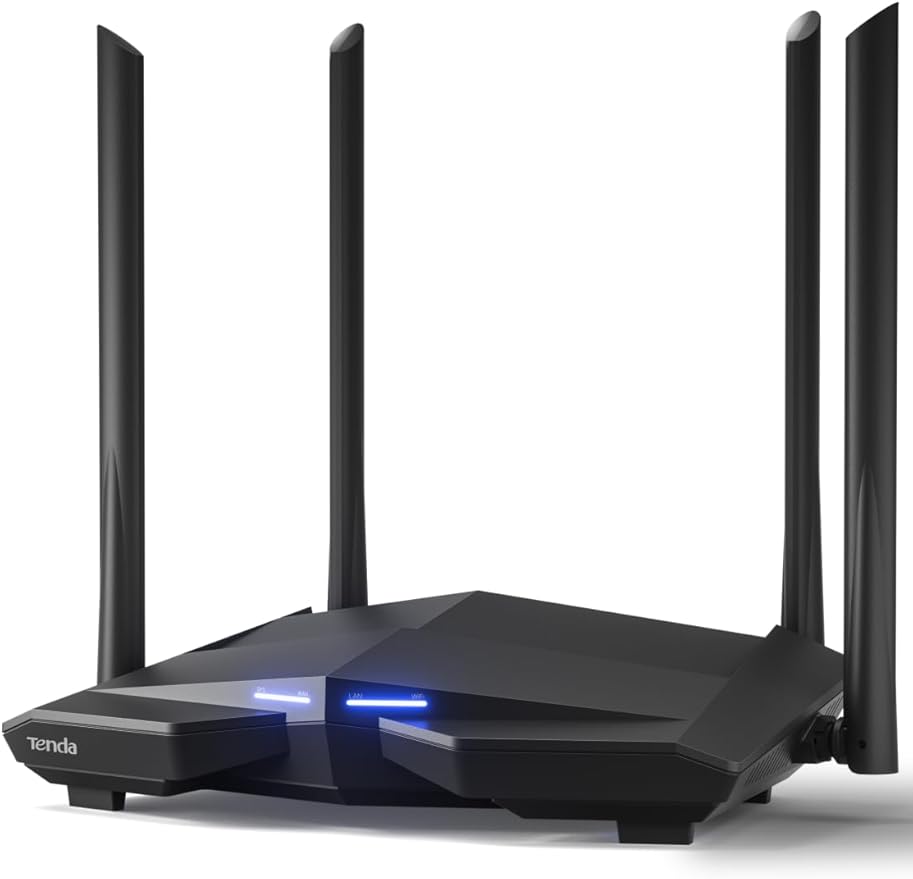


Table of Contents
- What 2.4 GHz and 5 GHz Actually Mean
- Range vs Speed: The Big Difference
- Interference: Why Your WiFi Gets Slow
- When to Use Each Frequency (Practical Guide)
- How to Configure Your Dual-Band Router
- Myths and Facts About 2.4 GHz and 5 GHz WiFi
- Frequently Asked Questions
- Conclusion
What 2.4 GHz and 5 GHz Actually Mean
When we talk about 2.4 GHz and 5 GHz, we're talking about radio frequencies that your router uses to transmit wireless internet. Think of them as "invisible highways" where your data travels.
GHz stands for Gigahertz, which measures frequency. The higher the number, the more radio waves transmitted per second. But here's the kicker: more waves doesn't necessarily mean better performance.
How These Frequencies Work
The 2.4 GHz frequency operates between 2400 and 2500 MHz and has been around since the first WiFi routers. It uses longer radio waves that can travel greater distances and pass through obstacles easily.
The 5 GHz frequency operates between 5150 and 5850 MHz and started gaining popularity with the WiFi 5 (802.11ac) standard. Its waves are shorter and more concentrated, allowing it to transmit much more data per second.
Simple analogy: Imagine 2.4 GHz is like an old highway that goes far but has lots of traffic and potholes. 5 GHz is a brand-new expressway: fast, but only works well over short distances without barriers.
Why Two Frequencies Exist
Manufacturers didn't create two frequencies by accident. Each was developed to solve specific problems:
- 2.4 GHz: Created when devices were few and far from the router
- 5 GHz: Developed when streaming, online gaming, and video calls became commonplace
- Combined use: The modern strategy is to use both simultaneously in dual-band routers
To better understand how to choose the right equipment, check out our complete guide on how to choose a good router.
Range vs Speed: The Big Difference
The relationship between range and speed is inversely proportional: the farther the signal travels, the slower it gets. Let's break down the real numbers.
2.4 GHz WiFi: The Range Champion
2.4 GHz can cover much larger areas than 5 GHz. In open spaces, it can reach up to 300 feet. Inside your home, with walls and furniture, coverage drops to about 150 feet, but that's still impressive.
Real-world speed: Under ideal conditions, 2.4 GHz can hit up to 150 Mbps in practical tests (using WiFi 4). With more modern standards like WiFi 6, this number can reach 300 Mbps, but still falls below 5 GHz.
Why it penetrates walls better:
- Longer waves bend around obstacles more easily
- Greater wavelength means less signal loss
- Loses less energy passing through dense materials
- Ideal for multi-story homes
5 GHz WiFi: The Internet Speedster
If you need speed, 5 GHz is unbeatable. It can deliver up to 1000 Mbps (1 Gbps) in real conditions, especially with WiFi 5 (802.11ac) or WiFi 6.
Limited range: In open spaces, 5 GHz only reaches about 100 feet. Inside your home, with obstacles, this number drops to 50 feet or less. Each wall significantly reduces signal strength.
Where 5 GHz shines:
- Same room as router: maximum performance
- 4K or 8K streaming without buffering
- Online gaming with super low ping (up to 50% reduction)
- Fast transfer of large files
- HD video calls without lag
Feature | 2.4 GHz | 5 GHz |
|---|---|---|
Range (Outdoors) | Up to 300 ft | Up to 100 ft |
Range (Indoors) | Up to 150 ft | Up to 50 ft |
Typical Speed | 150-300 Mbps | 600-1000 Mbps |
Wall Penetration | Excellent | Limited |
Number of Channels | 11 channels | 23 channels |
Interference | High | Low |
Real Test: Distance Impact
I ran a test at home to demonstrate the impact of distance on each frequency. With a 300 Mbps internet plan:
Same room as router:
- 2.4 GHz: 145 Mbps download
- 5 GHz: 298 Mbps download
Two rooms away (with one wall):
- 2.4 GHz: 132 Mbps download
- 5 GHz: 187 Mbps download
Different floor:
- 2.4 GHz: 89 Mbps download
- 5 GHz: 31 Mbps download (and unstable connection)
See the pattern? 2.4 GHz loses speed gradually, while 5 GHz drops hard when it encounters obstacles.
Interference: Why Your WiFi Gets Slow
One of WiFi's biggest problems is interference from other devices. And guess which frequency suffers more? Exactly: 2.4 GHz.
The 2.4 GHz Frequency Is an Interference Party
The 2.4 GHz band is called the "ISM band" (Industrial, Scientific and Medical), meaning it's free and public to use. Any equipment can use this frequency without needing authorization.
Devices that cause 2.4 GHz interference:
- Microwaves: Operates at exactly 2.45 GHz (causes massive interference)
- Cordless phones: Older models use 2.4 GHz
- Bluetooth devices: Headphones, speakers, keyboards, mice
- Baby monitors: Most operate on this frequency
- Wireless security cameras: Mainly cheaper models
- Garage door openers: Some older models
- Neighbors' WiFi networks: In apartments, this is critical
Why Your Microwave Kills Your Internet
Here's a mind-blowing fact: household microwaves operate at 2.45 GHz with power between 500W and 1100W. For comparison, your router transmits with less than 1W of power.
When you turn on the microwave, it literally "shouts" on the same channel your WiFi is trying to "whisper." Even well-shielded microwaves leak some radiation, enough to cause slowdowns or dropped connections.
Practical solution: If you work from home and your internet drops every time someone heats up lunch, switch your laptop to the 5 GHz network or use an Ethernet cable directly to the router.
Does 5 GHz Have Interference Too?
Yes, but way less. The 5 GHz band is much less congested because fewer household devices use this frequency, it has 23 available channels (versus 11 for 2.4 GHz), wider channels without overlap, and shorter range means fewer neighboring networks interfering.
Possible 5 GHz interference:
- Neighbors' WiFi networks also using 5 GHz
- Some weather radar systems (specific channels)
- Professional security cameras
- Industrial monitoring devices
But in practice, for home use, 5 GHz is virtually interference-free.
How to Tell If You're Suffering from Interference
There are free apps that show which networks are operating near you and on which channels. For Android, use WiFi Analyzer. For PC or Mac, NetSpot is excellent.
Signs you have interference:
- Internet gets slow at specific times (when neighbors get home from work)
- Connection drops when someone uses the microwave
- Speed varies wildly for no apparent reason
- High and unstable ping in online games
- Video calls freeze frequently
If you identify many networks on the same channel band as yours, consider changing channels or migrating to 5 GHz.

When to Use Each Frequency (Practical Guide)
Now that you understand the technical differences, let's get to what really matters: when to use each one in practice.
Use 2.4 GHz for These Devices
IoT (Internet of Things) devices:
- Smart lights
- Voice assistants (Alexa, Google Home)
- Smart plugs
- Electronic locks
- Smart thermostats
These devices don't need high speed and usually sit in various locations around the house. 2.4 GHz ensures they all stay connected.
Devices in distant rooms:
- Smartphones you use while walking around the house
- Tablets for reading in the bedroom
- Security cameras in outdoor areas
- Shared printers on another floor
Older equipment:
- Laptops bought before 2015
- Older smart TVs with only 2.4 GHz WiFi
- Older consoles (PS3, Xbox 360)
- Digital cameras with built-in WiFi
Use 5 GHz for Maximum Performance
Streaming and entertainment:
- Smart TVs for Netflix, Disney+, Prime Video
- Streaming devices (Chromecast, Fire TV Stick, Apple TV)
- 4K or 8K services requiring consistent 25-50 Mbps
- High-fidelity music platforms
Online gaming:
- Gaming consoles (PS5, Xbox Series X/S)
- Gaming PC (when cable isn't an option)
- Cloud gaming (Xbox Cloud, GeForce Now)
- Any competitive game where low ping is critical
Work and productivity:
- Laptops for home office
- Video calls via Zoom, Teams, Google Meet
- Large file transfers
- Remote server access (VPN)
- Online video editing or graphic design
Heavy downloads and uploads:
- Backing up photos and videos to the cloud
- Game updates (50-100GB downloads)
- Uploading content to YouTube or social media
- Folder sync (Dropbox, OneDrive)
Special Situations
Environment with many thick walls: If your home has concrete or thick masonry walls, even when close to the router, 2.4 GHz may be more stable than weak 5 GHz.
Small apartment: In studios or 1-2 bedroom apartments, use 5 GHz for everything. Range won't be an issue and you'll get maximum speed.
Two-story house: Router on the first floor? Use 5 GHz for devices on the same floor and 2.4 GHz for the second floor. Or invest in a mesh system for smart homes.

How to Configure Your Dual-Band Router
Most modern routers are dual-band, meaning they broadcast simultaneously on 2.4 GHz and 5 GHz. But very few people know how to configure them correctly.
Strategy 1: Two Networks with Different Names
This is my favorite setup because it gives total control over which device connects where.
How to do it:
- Access router settings (usually by typing 192.168.1.1 or 192.168.0.1 in your browser)
- Log in (default username and password are on the router label)
- Look for the "Wireless" or "WiFi" section
- Configure the 2.4 GHz network with one name (e.g., "MyNetwork_2G")
- Configure the 5 GHz network with another name (e.g., "MyNetwork_5G")
- Use the same password on both for convenience
Advantages:
- You choose exactly which device uses which frequency
- Easier to identify problems
- Ideal for those who like total control
Disadvantage:
- Need to manually connect each device to the right network
Strategy 2: One Network with Same Name (Smart Connect)
Some routers call this "Smart Connect" or "Band Steering." The router creates a single network and automatically decides which device goes to which frequency.
How it works:
- 5 GHz-compatible devices close to router: connect to 5 GHz
- Distant devices or weak 5 GHz signal: connect to 2.4 GHz
- Older devices with only 2.4 GHz: connect automatically
Advantages:
- Simplified setup
- Automatic switching if one frequency's signal weakens
- Ideal for those who don't want to worry about it
Disadvantages:
- Less control over where each device connects
- Some IoT devices have issues with this configuration
- May not always choose the ideal frequency
Advanced Optimizations for Maximum Performance
Choosing the right channel:
For 2.4 GHz, only use channels 1, 6, or 11. These are the only ones that don't overlap. Use apps like WiFi Analyzer to see which is least congested in your area.
For 5 GHz, most channels don't overlap. Prefer channels above 100 if available, as they usually have less traffic.
Channel width:
On 2.4 GHz, always use 20 MHz. Using 40 MHz causes too much interference and isn't worth it.
On 5 GHz, you can use 40 MHz or even 80 MHz for maximum speeds, as long as there aren't many neighboring networks.
Router positioning:
Place the router in an elevated, central location in your home. Avoid placing it near microwaves, cordless phones, or inside cabinets.

Myths and Facts About 2.4 GHz and 5 GHz WiFi
There are many myths circulating about these frequencies. Let's clear up the main ones.
Myth 1: "5 GHz is always better than 2.4 GHz"
False. As we've seen, each frequency has its purpose. 5 GHz is better for speed over short distances, but 2.4 GHz is irreplaceable for range and obstacle penetration. There's no "better," there's "more suitable" for each situation.
Myth 2: "5 GHz drains phone battery faster"
Partially true. 5 GHz can consume slightly more power when the signal is weak because the device has to work harder to maintain the connection. However, when the signal is strong, the difference is negligible. What really drains battery is constantly switching between networks or having weak signal on any frequency.
Myth 3: "2.4 GHz is obsolete"
Totally false. While it's older technology, 2.4 GHz will remain relevant for many years. Most IoT devices use exclusively 2.4 GHz precisely because of superior range. Plus, modern standards like WiFi 6 have significantly improved 2.4 GHz performance.
Myth 4: "Tri-band routers are unnecessary"
It depends. If you have more than 20 devices connected simultaneously or live in a location with many neighboring WiFi networks, a tri-band router (offering one 2.4 GHz network and two 5 GHz networks) can make a difference. For homes with up to 10-15 devices, dual-band works perfectly.
Truth 1: More antennas don't mean better signal
Many people think routers with 6 or 8 antennas are always better. In practice, what really matters is the chipset, support for MU-MIMO, Beamforming, antenna gain (dBi), and internal design quality.
A quality router with few antennas can deliver much better performance than models "loaded with antennas" just for marketing purposes.

Ports and Hardware: What to Look For in Specs
Many people choose routers only by "WiFi," but ignore the hardware — and this creates silent bottlenecks.
Items you must check
-
Gigabit Ports (1000 Mbps)
Avoid any model with Fast Ethernet ports (100 Mbps). They limit your internet even with fast WiFi. -
Processor (CPU)
Modern routers need strong CPUs to handle multiple devices, QoS, Mesh, and WPA3 encryption. -
RAM Memory
The more connected devices, the more RAM matters. Weak models freeze, restart, or lose performance. -
USB (optional, but useful)
For sharing printers, hard drives, or simple local backups.
Golden practical rule
If the router seems too cheap, something was cut in the hardware.
Buying Priorities: What Impacts Your Health and Productivity
Not every tech accessory has the same weight in daily life. Some directly impact your health, focus, and performance.
| Category | Health Impact | Productivity Impact | Purchase Priority |
|---|---|---|---|
| Laptop Stand | Critical (Neck) | Medium | Immediate |
| Vertical Mouse | High (Wrists) | High (Extended comfort) | High |
| USB Hub | Low | Very High (Workflow) | Medium |
| ANC Headphones | Medium (Hearing stress) | Extreme (Focus) | Medium/High |
| Backup Earbuds (TWS) | Low | Medium (Redundancy) | Low |
Frequently Asked Questions
What's the difference between a modem and router?
The modem brings internet from the street to your home (translates the ISP's signal). The router distributes that signal via WiFi or cable to your devices. Most ISPs provide a 2-in-1 device, but usually with weak WiFi.
Will a new router increase my internet speed?
It won't increase the speed on your plan, but it allows you to receive the actual speed you're paying for. Old or basic routers create bottlenecks that drastically reduce the speed reaching your phone.
What is WiFi 6 and is it worth it?
Yes, totally worth it. WiFi 6 (802.11ax) better manages multiple connected devices simultaneously, reduces latency, and improves real-world speed. It's the recommended standard for.
What's the difference between a regular router and Mesh?
A regular router centralizes the signal, losing strength with distance. A Mesh system uses two or more modules that talk to each other, creating a single intelligent network that covers the entire home without speed loss.
How many antennas does a router need?
The visible number of antennas doesn't alone define quality. What's most important is internal technology (MIMO), gain in dBi, and chipset. Many premium routers don't even have visible external antennas.

Conclusion
If your home WiFi is unstable, slow, or drops in some rooms, the problem is rarely the ISP — it's almost always the equipment.
Investing in a good router (or Mesh system) isn't luxury, it's basic infrastructure, just like electricity or water.
You gain:
- More real-world speed
- Fewer dropouts
- Less stress
- More productivity
- Better experience streaming, working remotely, and gaming
The right question isn't "what's the cheapest router?", but rather:
"Which router solves my problem today and won't limit me tomorrow?"
If you made it this far, you already know exactly how to choose.