How to Choose a Good Webcam: 8 Essential Buying Criteria
Find the perfect webcam for remote work, online classes, or streaming with our complete buying guide.
Is your laptop's webcam delivering grainy, dark images during meetings? You're not alone—64% of remote professionals report dissatisfaction with their built-in camera's video quality. And this directly impacts your professional presence.
With so many options on the market, choosing the right webcam might seem complicated. Resolution, FPS, autofocus, built-in mic... that's a lot of technical jargon to process. But the good news is you don't need to be an expert to make a great choice.
In this definitive guide, I'll show you exactly which features make a real difference and which are just marketing fluff. You'll discover the 8 essential criteria for choosing your ideal webcam, understand the differences between basic and advanced models, and learn about the best options of 2025 for each type of use.


Table of Contents
- Why Your Laptop's Webcam Isn't Enough
- Resolution: HD, Full HD, or 4K
- Frame Rate: 30 FPS or 60 FPS
- Focus Type: Auto vs Manual vs Fixed
- Built-in Microphone Quality
- Connection and Compatibility
- Field of View and Capture Angle
- Extra Features Worth Considering
- How to Position Your Webcam Correctly
- Frequently Asked Questions
- Conclusion
Why Your Laptop's Webcam Isn't Enough
Most laptops come with built-in cameras that max out at 720p. This resolution was acceptable 10 years ago, but today it falls way short of the professional standard that meetings and video conferences demand.
The difference isn't just technical. In an important client meeting, a crisp image conveys professionalism and attention to detail. A blurry or grainy image can hurt your credibility, even if your work is flawless.
Technical Limitations of Built-in Cameras
Laptop webcams face three main problems:
Tiny, low-quality sensor: To save space and cost, manufacturers use microscopic sensors that capture less light. The result? Dark images in normal lighting and terrible performance in low-light situations.
Unfavorable positioning: Fixed at the top of your screen, the built-in camera captures you from an unflattering lower angle. Plus, you can't adjust the position without moving your entire laptop.
No correction features: Dedicated webcams have automatic light, contrast, and color adjustment technologies. Built-in ones rarely have these functions, delivering untreated images.
For folks working remotely, participating in online interviews, or creating content, investing in an external webcam for your home office setup isn't a luxury—it's a professional necessity that pays for itself quickly in credibility and opportunities.
Resolution: HD, Full HD, or 4K—Which to Choose
Resolution defines how many pixels form your image. More pixels mean more detail and sharpness. But heads up: higher resolution demands more from your internet and computer processing.
HD 720p: For Basic Use
HD webcams capture images at 1280x720 pixels. It's the minimum acceptable resolution for video calls.
When to choose HD 720p:
- Your internet speed is below 5 Mbps
- Using it only for casual calls with friends and family
- Your computer is older with limited processing power
- Very tight budget (models starting around $40)
Limitations: The image looks noticeably less sharp, especially on large screens. Facial details get blurry and text in the background becomes unreadable.
Full HD 1080p: The Professional Standard
With 1920x1080 pixels, Full HD is the perfect balance between quality and performance. It's the right choice for 90% of people.
Full HD advantages:
- Sharp, professional image in meetings
- Works well on any connection above 5 Mbps
- Doesn't require a powerful computer
- Affordable price ($75 to $200)
- Standard accepted on all platforms
This resolution captures enough detail to clearly convey facial expressions. In meetings, that makes a difference—your conversation partner can tell when you're attentive, confused, or interested.

4K Ultra HD: For Content Creators
With an impressive 3840x2160 pixels, 4K delivers the maximum quality available in webcams.
When 4K is worth the investment:
- You create professional content for YouTube, TikTok, or Instagram
- You stream live regularly
- You need to record videos that'll be edited later
- You work with visual presentations where details matter
Points to consider: 4K webcams start around $300. You'll need fast internet (15 Mbps or more) and a computer with a decent processor to avoid lag. Platforms like Zoom and Teams limit resolution to save bandwidth, so 4K really shines in local recordings.
For remote work and online learning, Full HD 1080p offers the best bang for your buck. Save 4K only if you genuinely need that extra quality.
Frame Rate: Does 30 FPS or 60 FPS Make a Difference
FPS (frames per second) indicates how many images per second the webcam captures. The higher the number, the smoother and more natural the motion looks.
30 FPS: Enough for Most People
Webcams at 30 FPS capture 30 images every second. It's the industry standard for video conferencing.
Why 30 FPS works well:
- Sufficiently fluid motion for natural conversations
- Uses less internet bandwidth (important for unstable connections)
- Doesn't require heavy computer processing
- Compatible with all video call platforms
In regular meetings, you're not moving fast. Your face stays relatively static while talking. In these situations, 30 FPS delivers more than enough fluidity.
60 FPS: For Fast Motion
Doubling the frame rate to 60 FPS creates noticeably smoother motion. But it comes at a cost.
When 60 FPS makes a difference:
- Game streaming where you react quickly
- Videos with lots of physical movement (product demos, fitness tutorials)
- Professional content creation for YouTube
- Recordings that'll be edited in slow motion
The cost of 60 FPS: Webcams with this frame rate cost at least 50% more. They require faster internet and take up nearly double the disk space for recordings. Many video call platforms automatically limit to 30 FPS to save bandwidth.
Our recommendation: For home office, online classes, and meetings, save your money. Invest in better resolution or lighting instead of chasing 60 FPS. Reserve that frame rate only if you stream interactive content live or create professional videos.
Focus Type: Auto vs Manual vs Fixed
The focus system determines how the webcam keeps your image sharp. Each type has specific advantages and limitations.
Fixed Focus: Simple and Functional
Fixed focus webcams are factory-adjusted to maintain sharpness at a specific distance (usually 20 to 31 inches).
Fixed focus advantages:
- More affordable price
- No moving parts that can break
- Uses less processing power
- Perfect if you don't change position
Ideal for: People who work seated in the same position during calls. If you maintain a consistent distance from the camera, fixed focus works perfectly and saves money.
Heads up: If you gesture a lot, move closer or farther from the screen, or share the space with other people, fixed focus might leave the image blurry.
Autofocus: Automatic Sharpness
Autofocus constantly adjusts the focal distance, keeping you always sharp even when you move.
How it works: Sensors detect your face and automatically adjust the lenses to maintain perfect focus. You can lean in to show something or pull back without losing sharpness.
Practical benefits:
- Freedom to move naturally
- Useful in presentations where you show products or documents
- Helpful if you share the webcam with other people
- Essential for dynamic demonstrations
Points to consider: Webcams with autofocus cost 30% to 50% more. In some cheaper models, the adjustment can be noticeable and distracting during calls. Stick with recognized brands that invest in smooth autofocus.
Manual Focus: Total Control
Some professional webcams let you adjust focus manually by turning a ring on the lens, like on cameras.
When it makes sense:
- You need absolute control of the image
- You work in challenging lighting environments
- You capture static objects (like documents or products)
- You create content requiring specific depth effects
Downside: Requires constant adjustment when you move. For regular meetings, it's more work than it's worth.
Our recommendation: For home office and online classes, autofocus is worth the investment. If your use is more static (always in the same position), save money with fixed focus. Leave manual focus for advanced content creators.
Built-in Microphone Quality Matters More Than You Think
Bad audio is more annoying than imperfect video. You can participate in a meeting with grainy video, but not with muffled or noisy audio.
Simple Microphones vs Noise Cancellation
Basic webcams have simple mono microphones that pick up all surrounding sounds. Mid-range models include noise cancellation technology.
The practical difference: Without noise cancellation, your voice competes with dog barking, traffic noise, fans, and even the sound of your own keyboard while typing. With cancellation, these sounds are drastically reduced.
Audio technologies in webcams:
- Mono: One microphone captures sound from all directions equally
- Stereo: Two microphones create a spatial audio sensation
- Noise cancellation: Algorithms filter unwanted sounds while keeping your voice clear
- Directional pickup: Microphone focuses on voice coming from the front, ignoring side sounds
Effective Microphone Range
Most webcams capture clear audio up to about 3 feet away. Beyond that, your voice starts sounding muffled or distant.
Important tip: Don't rely solely on the webcam microphone for important presentations. Consider a headset with a microphone or a dedicated USB mic as backup for critical meetings.
When the built-in mic is sufficient:
- You work in a relatively quiet environment
- You participate in casual team meetings
- The distance from the webcam is 20 to 31 inches
- Your home office has ambient noise control
When to invest in a separate microphone:
- You work from home with kids, pets, or lots of external noise
- You do podcasts, interviews, or important audio content
- You need professional voice quality for sales or customer service
- You record webinars or online courses
To further improve your call audio experience, consider Bluetooth TWS earbuds with superior built-in microphone quality.
Connection and Compatibility: What You Need to Know
Most headaches with webcams come from compatibility issues. Let's solve that before it becomes a problem.
Connection Types
USB-A (USB 3.0 or 2.0): It's the universal standard. The vast majority of webcams use this connection type. If your computer has the standard rectangular USB port, you're covered.
USB-C: More modern, high-end webcams use USB-C for faster data transfer. Important for 4K models at 60 FPS. If your computer only has USB-A, you'll need an adapter.
Plug and Play: Almost all modern webcams are plug and play. You connect it to the USB port and it works immediately, no installation needed. Only very old or very specific models require downloading drivers.
Operating System Compatibility
The good news: modern webcams work on virtually any system without issues.
Windows (7, 10, 11): Universal compatibility. All webcams work without difficulty. Windows itself identifies and installs automatically.
macOS: Macs also have excellent compatibility. The only thing to check is whether your webcam has a USB-C port or if you'll need an adapter for Thunderbolt.
Linux: Most webcams work, but models with advanced features (image correction, effects) might not have configuration software available for Linux.
Chrome OS (Chromebooks): Good compatibility with basic webcams. Advanced features might not work.
Video Platform Compatibility
Zoom, Google Meet, Microsoft Teams, Skype, WhatsApp Web, Discord... all these platforms automatically recognize any webcam connected to your computer.
There's no such thing as: "webcam for Zoom" or "webcam for Teams." If it works on one platform, it works on all of them.
Setup: In each app's video settings, you'll be able to select your external webcam instead of the laptop's built-in camera.

Field of View and Capture Angle
The field of view (FOV) determines how much of the environment around you the webcam can capture.
Common Fields of View
Field of View | Best Use | Visible People |
|---|---|---|
65° - 78° | Individual focused | 1 person |
78° - 90° | Individual standard | 1-2 people |
90° - 120° | Small groups | 2-4 people |
Above 120° | Conference rooms | 5+ people |
Narrow Field (65° - 78°)
Webcams with a narrow field focus mainly on you, with little of the background environment visible.
Advantages:
- Keeps focus on you, no distractions
- Ideal for messy environments (nobody sees the clutter)
- Lower processing requirements
- You appear larger on screen
Ideal for: Individual work where only you need to appear. Perfect for folks who don't want to expose much of their home environment.
Standard Field (78° - 90°)
It's the most common balance. Captures you comfortably with a bit of the background environment.
Why it's the most popular:
- Natural framing without feeling cramped
- You can gesture without leaving the frame
- Enough for two people to appear if needed
- Shows visual context without exposing too much
Ideal for: Home office, online classes, solo content creation.
Wide Field (90° - 120°)
Captures a larger area, allowing several people to appear simultaneously.
When it makes sense:
- You share workspace with someone
- You do presentations showing products or physical demonstrations
- You need mobility to move away from and closer to the camera
- You work as a team in the same location
Downside: You appear smaller on screen. If you work alone, you're paying for a field of view you don't use.
For most people working remotely, the standard field of 78° to 90° offers the best balance. If you frequently need to appear with other people or do demonstrations, consider 90° or more.
Extra Features That Are Actually Worth It
Modern webcams come with various extra features. Some are useful, others are pure marketing. Let's separate what matters.
Light Correction (Low Light Correction)
This is one of the most valuable features. The technology automatically adjusts exposure, brightness, and contrast when you're in a dark environment.
Brand names: RightLight (Logitech), HDR, Auto Light Correction.
Why it matters: You don't always control the lighting. On cloudy days or in rooms with a window behind you, this function saves your image from being dark and lacking detail.
Worth the investment: Yes. If you work in an environment with variable lighting, prioritize webcams with this feature.
Privacy Cover
Some webcams include a physical cover that shields the lens when not in use.
Real advantage: Peace of mind. You don't have to worry if the camera is recording or if someone can spy on you. Just close the cover.
Alternative: A sticker or tape over the lens works the same. But the integrated cover is more practical and doesn't leave residue.
Ring Light or Built-in LED
Some models include LED lighting around the lens to illuminate your face.
Reality: The built-in lighting helps, but doesn't replace proper light sources. The effect is subtle.
Our take: Nice to have, but not decisive. A well-positioned ambient lighting system makes more difference than the webcam's LED.
Configuration Software
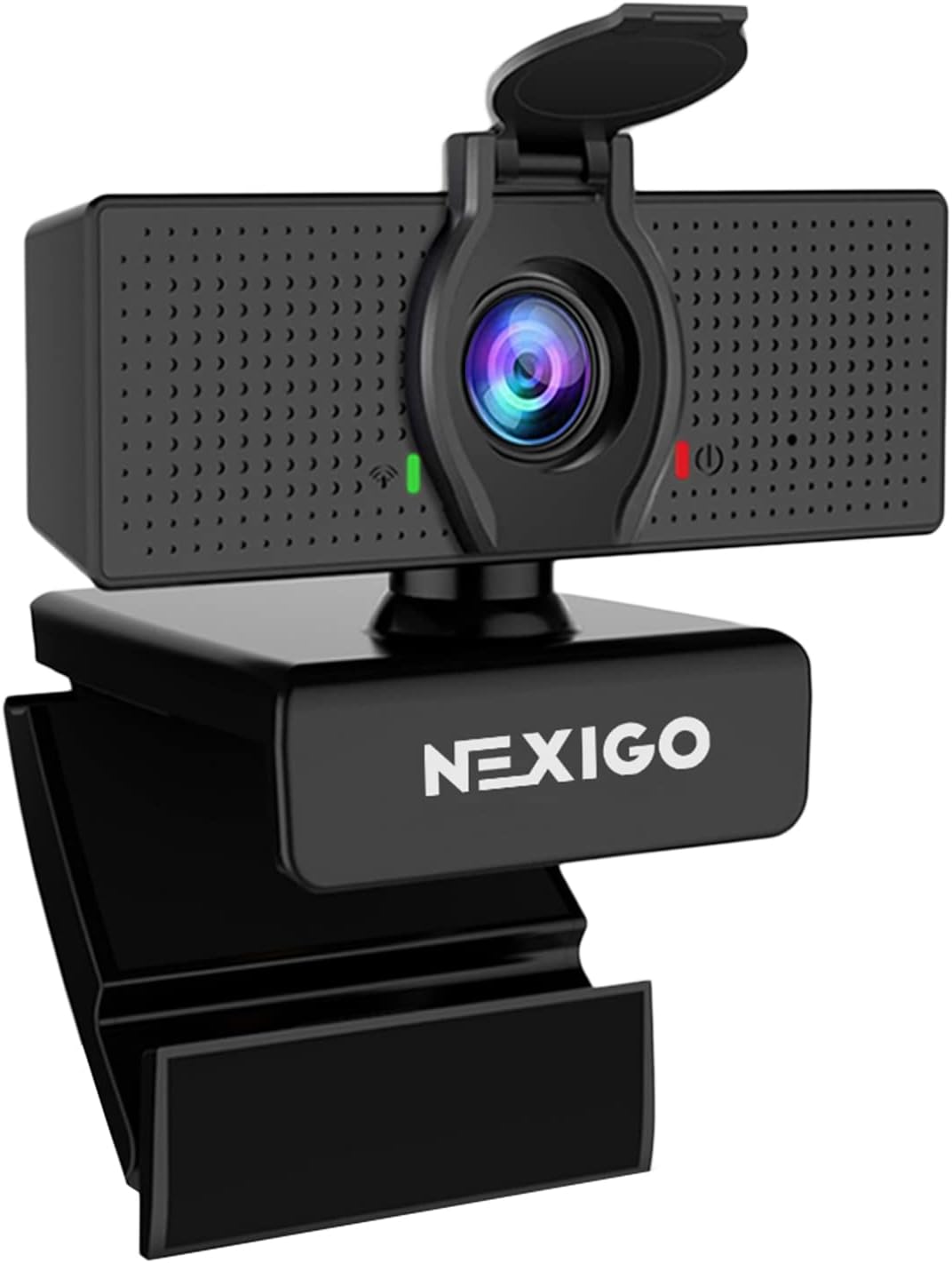
Brands like Logitech offer software to manually adjust:
- Brightness, contrast, and saturation
- Digital zoom
- Face tracking
- Background effects
Useful if: You create content and need fine control over the image. For regular meetings, automatic adjustments work fine.
Adjustable Mount and Tripod Thread
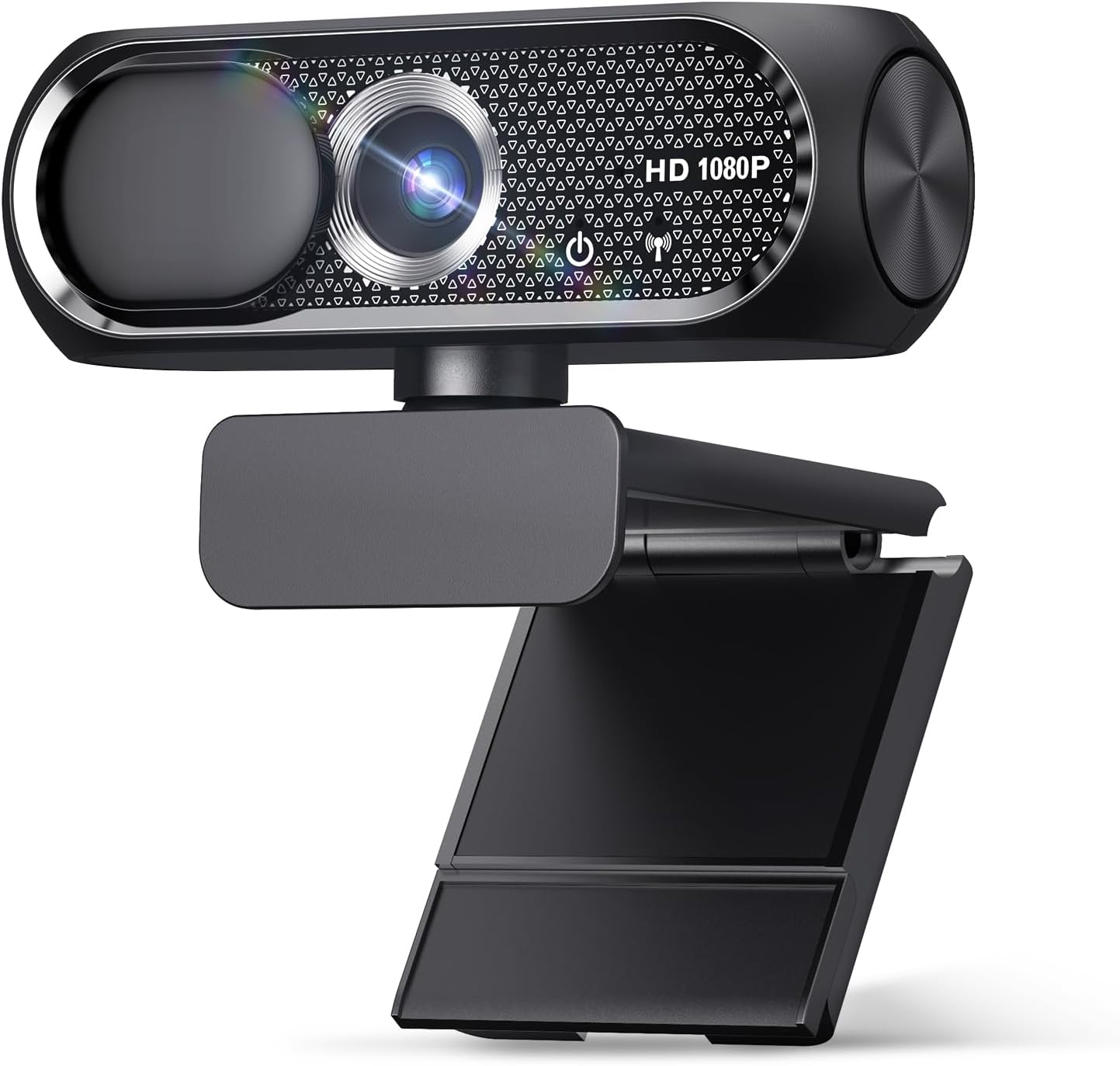
Check if the mount allows:
- Stable clip for top of monitor
- Vertical angle adjustment (tilt)
- Base for placing on desk
- Standard 1/4" thread for tripod
Why it matters: Proper positioning makes a huge difference. You want flexibility to adjust height and angle until you find the ideal framing.
Features You Can Skip
Effects and filters: Most video call platforms already offer virtual background effects. Don't pay extra for this on the webcam.
Facial recognition for Windows Hello: Useful but not essential. Very specific functionality that increases the price.
Video recording to SD card: Unnecessary. Your computer already records perfectly through the webcam.
Prioritize Full HD resolution, autofocus, microphone with noise cancellation, and light correction. The rest is complementary.
How to Position Your Webcam Correctly
The world's best webcam delivers poor images if badly positioned. Follow these tips to always look your best:
Ideal Height
Golden rule: The webcam lens should be at eye level or slightly above (up to 6 inches).
Why: Upward angles are unflattering and convey submissiveness. Very high angles make you seem distant. At eye level, you maintain natural eye contact with the screen, like you're talking in person.
How to adjust: If necessary, use books, boxes, or a stand to raise the webcam to the correct height.
Camera Distance
Ideal: 20 to 31 inches distance between your face and the lens.
Too close: You appear too large, with no room to gesture. Too far: You're tiny on screen, losing facial expressions.
Quick test: Extend your arm toward the camera. Your elbow should be approximately at the ideal distance.
Lighting: The Secret to Good Image
Never position the webcam with a window or strong light behind you. You'll just be a dark silhouette.
Correct light positioning: The main light source should be in front of your face. Ideally, a window in front of you or a lamp positioned behind the webcam illuminating you.
Side lighting: A second soft side light source eliminates harsh shadows on your face, creating a more professional appearance.
Color temperature: Very yellow (warm) or very white (cool) lights alter skin tones. Neutral white LED bulbs (4000K-5000K) work best for video.
Background and Environment
Keep it organized: What appears behind you matters. A messy environment distracts and hurts your professional image.
Depth: Position yourself 3 to 6 feet away from the background wall. This creates visual separation and allows more natural blur effects.
Neutral colors: Very colorful backgrounds or busy patterns compete for attention. Stick with neutral walls or organized shelves.
To complement your work setup, consider investing in ergonomic supports that make it easier to position your webcam at the ideal height while maintaining healthy posture.
Frequently Asked Questions
What's the best resolution for a home office webcam?
For meetings and professional calls, a Full HD 1080p webcam is ideal. It delivers sharp images without demanding too much from your internet connection. HD 720p models work fine for basic use, while 4K is only recommended for content creators.
Do I need a separate microphone or does the webcam have one built-in?
Most modern webcams have a built-in microphone with noise cancellation that's sufficient for meetings and calls. For professional streaming or high-quality recordings, a dedicated microphone offers superior audio, but it's not mandatory for regular use.
How do I know if my webcam is compatible with my computer?
Pretty much all current webcams use USB plug-and-play connections, working on Windows, Mac, and Linux without needing drivers. Just check that you have an available USB port (USB-A or USB-C with adapter) and that your operating system is compatible.
Is autofocus worth it or is fixed focus good enough?
It depends on your usage. Autofocus is essential if you move around during meetings or recordings, always keeping the image sharp. For folks who stay still in the same position, fixed focus works perfectly and costs less.
How much should I spend on a quality webcam?
Basic webcams for calls cost between $50 and $100. Mid-range Full HD models run $125 to $250. For streaming and professional content creation, invest $300 or more. The key is balancing cost with your actual usage needs.
Do webcams work well in low-light environments?
Models with light correction technology (like RightLight or HDR) perform better in darker spaces. However, no webcam replaces proper lighting. For best results, position a light source in front of your face, never behind you.
What's the difference between 30 fps and 60 fps on a webcam?
30 fps (frames per second) is standard and plenty for regular meetings and calls. 60 fps provides noticeably smoother motion, essential for game streaming or videos with lots of movement. For everyday work, 30 fps works perfectly.

Conclusion
Choosing the right webcam doesn't have to be complicated when you know the criteria that really matter. Full HD 1080p resolution, autofocus, microphone with noise cancellation, and light correction are the four pillars that separate a mediocre webcam from an excellent one.
For home office and online classes, invest between $125 and $200 in a quality mid-range model. This investment pays for itself quickly in professionalism and credibility in your online interactions. Remember: your video image is your digital business card.
Don't forget proper positioning: eye level, good front lighting, and organized background make as much difference as camera quality. Combine a good webcam with workspace organization to create a truly professional setup.
Now you have all the information to make a smart choice. Compare models, check real user reviews, and invest in the webcam that best fits your daily use. Whether you're upgrading your laptop setup or building a complete streaming station with high-performance hardware, the right webcam makes all the difference in how you present yourself online.